
Share this
by Nathan.Fouarge on Nov 5, 2026, 8:00:04 AM
There are several ways to recover data or a whole system with NovaBACKUP. You can mount the backup file, restore individual files and folders, or restore the System State or an entire PC or server to physical hardware or a Hyper-V VM. Each method addresses different types of data loss scenarios, so the right choice depends on what broke or was deleted, where the backup is stored, and how quickly you or your client needs to start working again.
This blog post explains each restore option in NovaBACKUP, including when to use it and how it works.
Table of Contents
- Which Restore Option Fits the Situation
- Start With the Backup
- Check a Backup or Grab a File Without Restoring
- File and Folder Restore
- System State Restore
- Full System Restore to Physical Hardware
- Recover as a Hyper-V VM
- Adjust the Restore Speed
- Use Case: PC or Server Outage
- Frequently Asked Questions
- Get Started
Which Restore Option Fits the Situation
| Data loss scenario | Restore option | Restores from |
|---|---|---|
| You need to either verify a backup or open a single file. | Mount | Local or cloud |
| Files were deleted, overwritten, or encrypted. | File and folder restore | Local or cloud |
| The registry is damaged, but the rest of the machine still works. | System State restore | Local or cloud |
| Windows won't start, but the boot disk is intact. | Full system restore from the recovery partition | Local or cloud |
| Either the internal hard drive or the entire hardware failed. | Full system restore from boot media, to the same or new hardware | Local or cloud |
| The server is down and replacement parts have been ordered. | Recover as a Hyper-V VM on an external switch | Local or cloud |
| You want to prove that a full system restore works. | Recover as a Hyper-V VM on an isolated switch | Local or cloud |
Start With the Backup
The available file and system-level restore options depend on how the backups were configured. With NovaBACKUP, you can run one backup job covering the entire system and selected files, or separate file and system backups into different jobs.
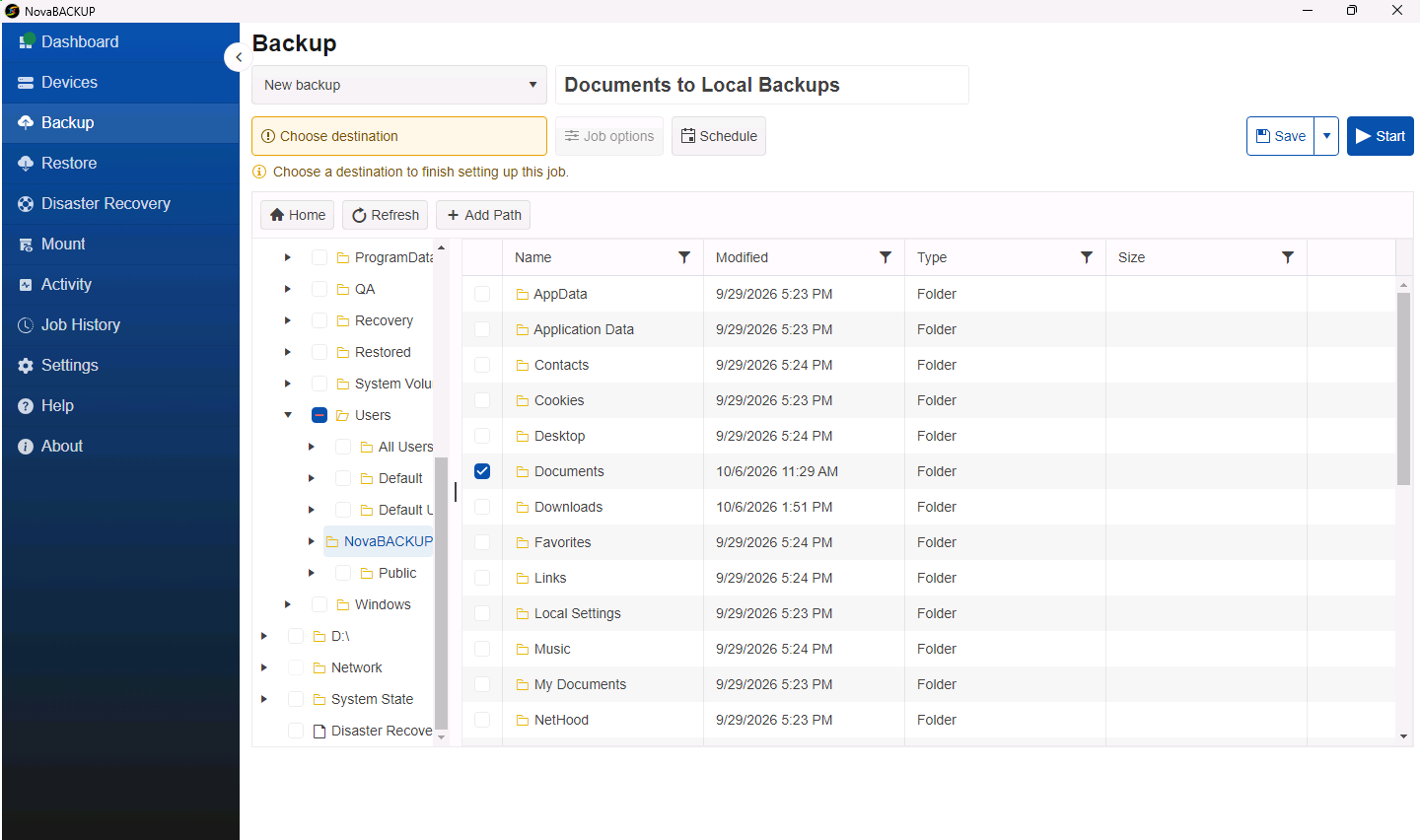
To create a simple file backup job, select the files and folders to include, choose the storage location, and schedule the backup.
To enable system backups, check the Disaster Recovery option in either the local agent or the central management console. This backs up everything needed to boot the machine, including the entire boot drive, system state, boot files, and UEFI data.
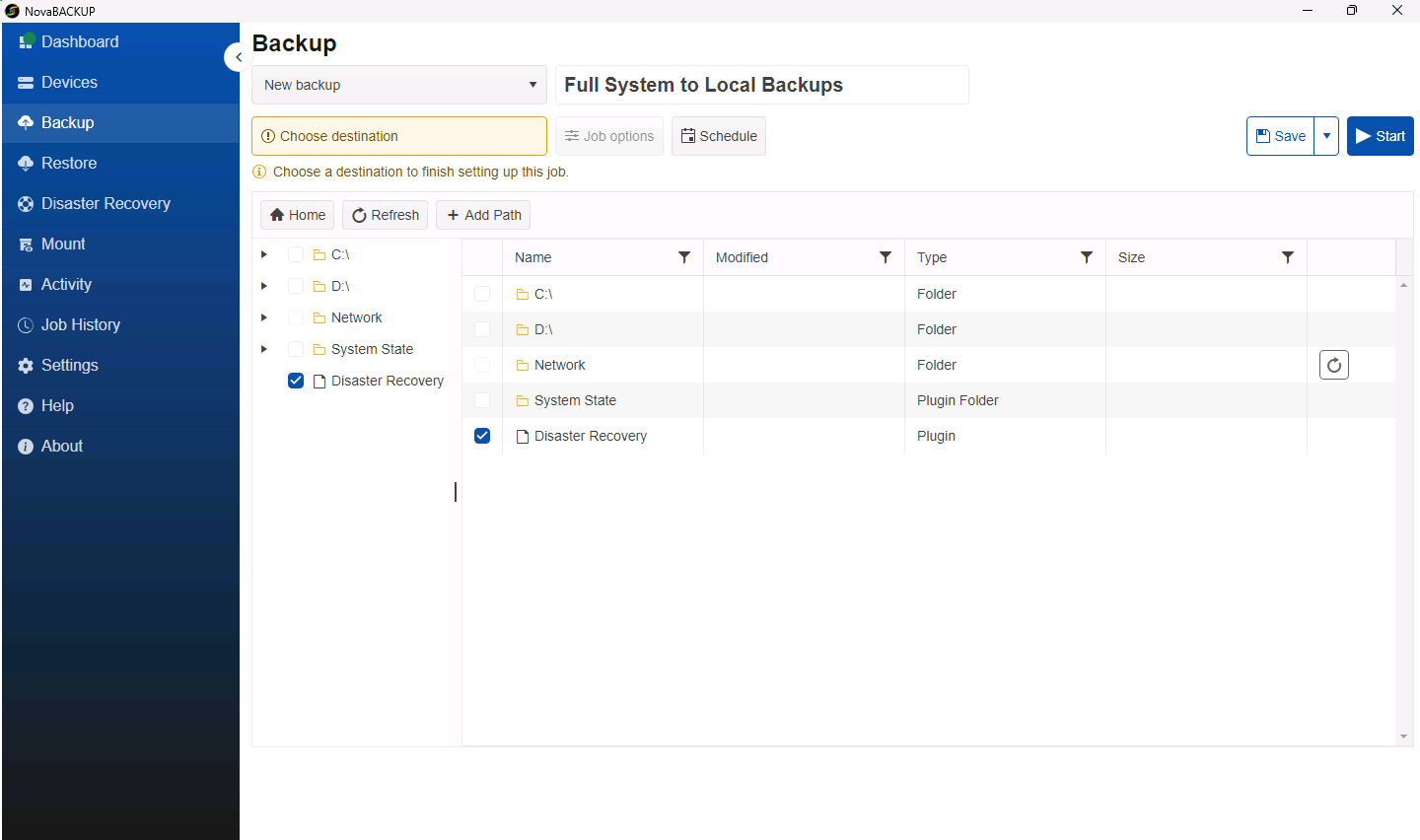
To combine both options in one job, select the Disaster Recovery option and add data from other drives, such as D: or E:, to the same job.
In either case, after the initial full backup, each subsequent backup file contains only the modified data, along with references to the complete backup set, meaning that a single damaged backup file won't jeopardize the entire backup set. For an extra layer of security, NovaBACKUP verifies that every indexed file is accessible in the backup storage before each backup runs. If not, the missing files are added to the next scheduled backup.
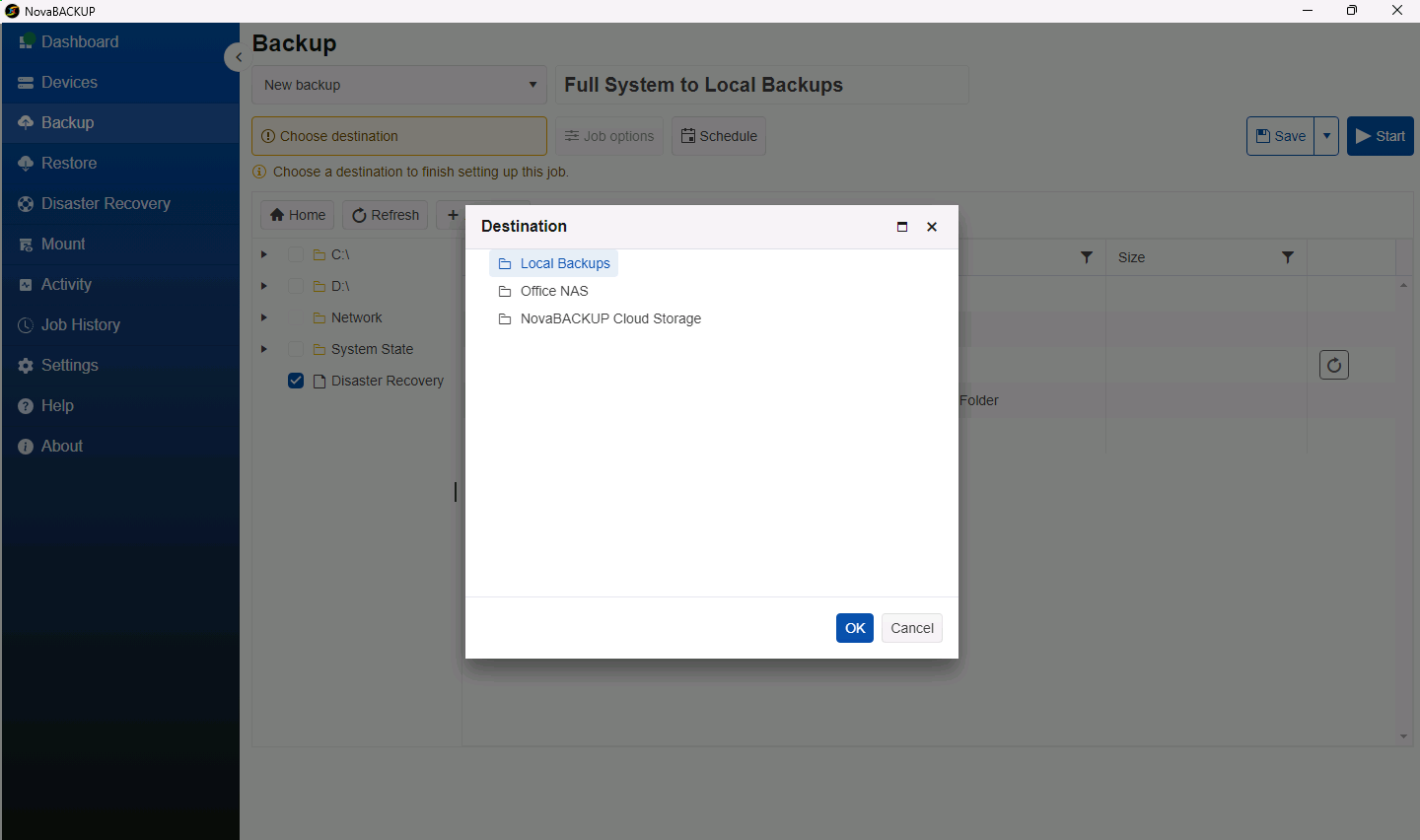
Lastly, file and system backups can be stored on a local disk, NAS, S3-compatible storage, or in the NovaBACKUP Cloud. When setting up the backup job, you can select a local target, an offsite target, or a hybrid job that writes to local storage first and then sends new and changed files to the cloud.
Check a Backup or Grab a File Without Restoring
The Mount feature provides the fastest access to a backup file. First, select a backup job and version. Then, select the folder in which you want to mount the backup. NovaBACKUP will then create a mount point that allows you to browse the backup and open files directly from that folder without writing anything back to the machine.
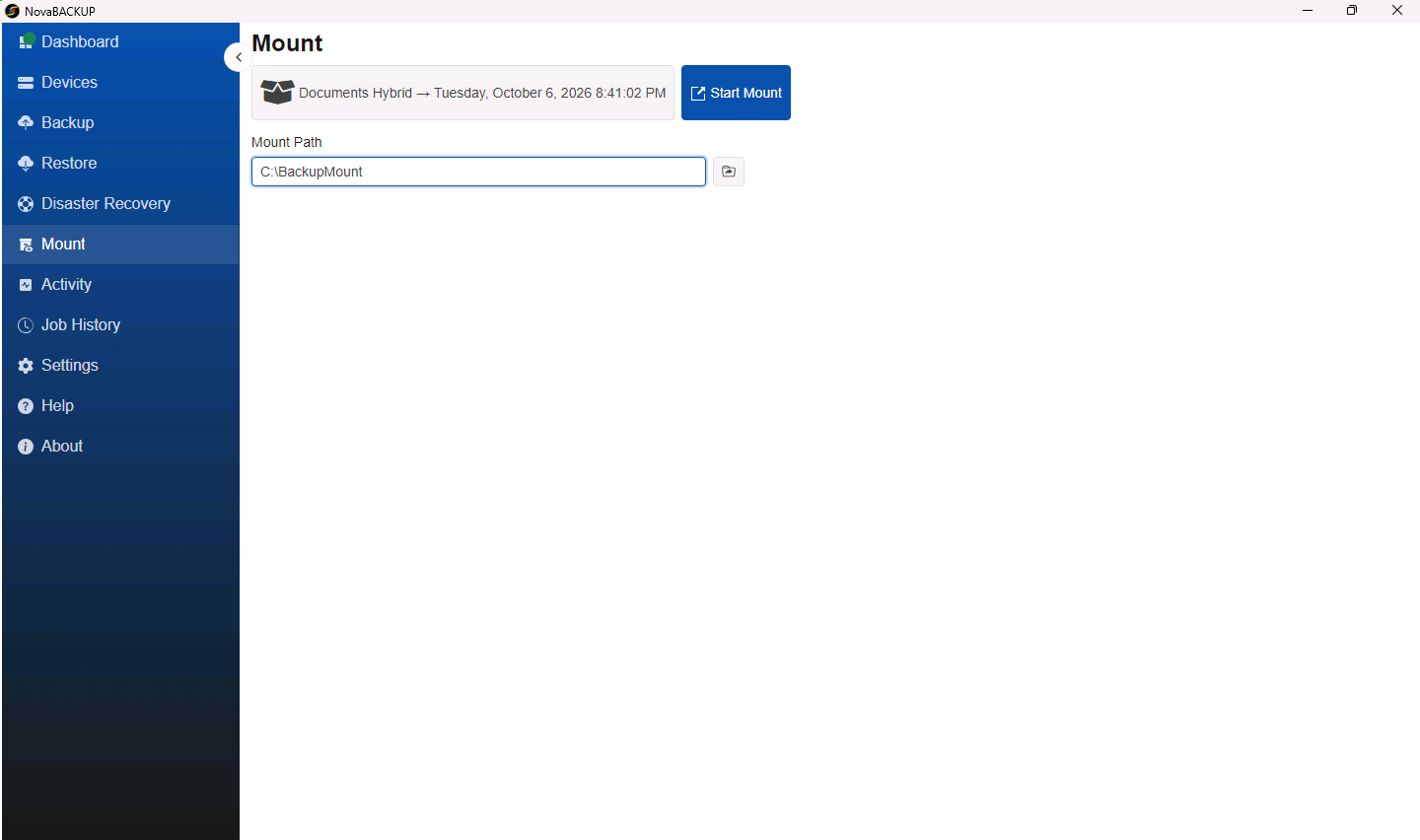
Use the Mount feature when:
- You want to verify a backup between full test restores. If the mount is successful and the files open, the backup data is readable.
- A client needs a specific file but isn't sure which version. Open the candidates from the mount point and restore only the correct file.
You can also use the Mount feature if you need to read a file without touching the production location.
The Mount feature works the same whether the backup is stored on a local disk, a USB drive, a NAS, or in the cloud.
File and Folder Restore
Use file and folder recovery when data is missing or damaged, such as deleted files, overwritten documents, a folder encrypted by ransomware, or a folder that needs to be rolled back to an earlier state.
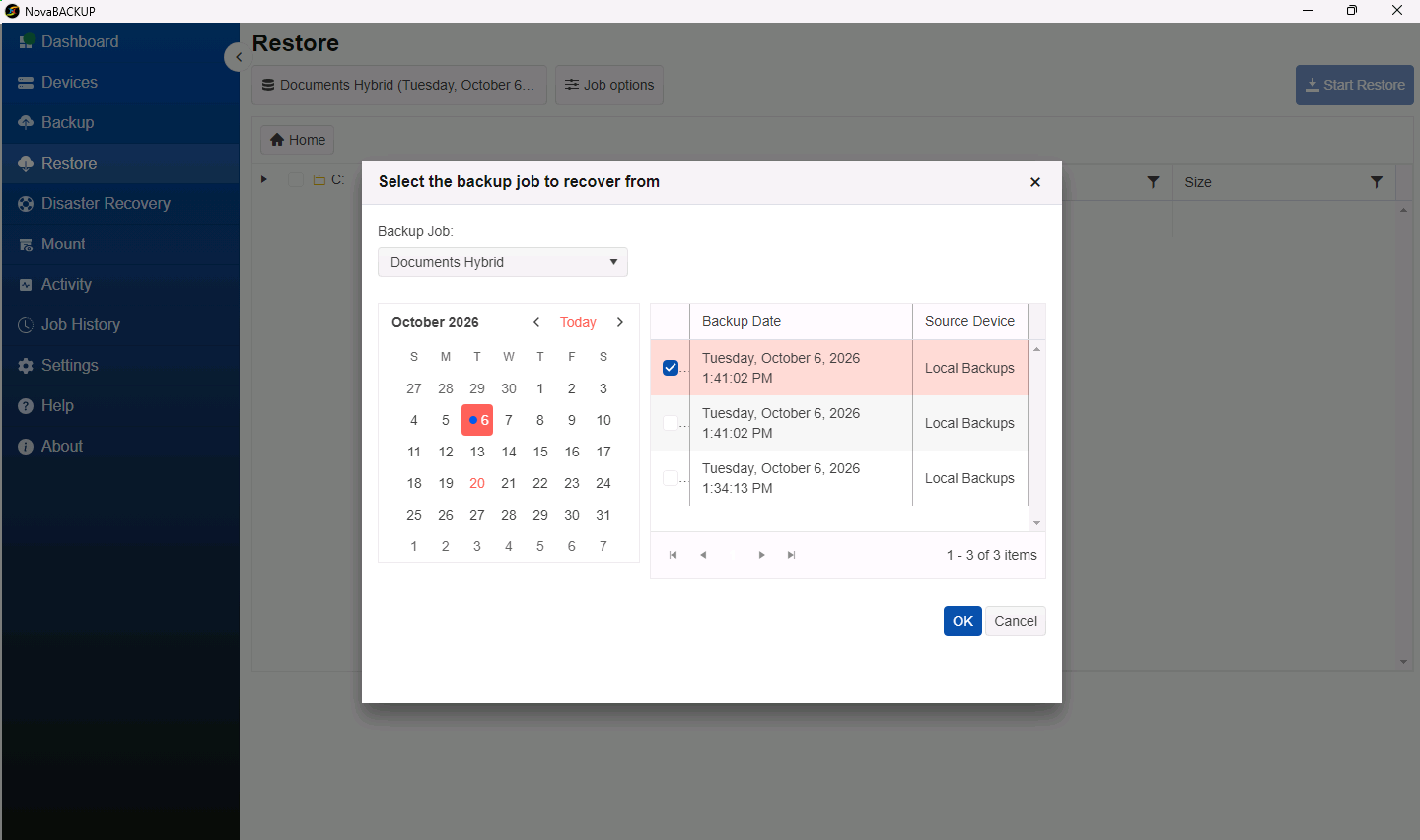
The restore screen in NovaBACKUP is job-based. First, select the backup job, then the version, and finally, the files or folders you want to recover. Next, choose the destination:
- Original location puts the data back where it was.
- Alternate location writes the data to a different path. Use this option if you want to compare the restored files with the files currently on the machine before overwriting anything.
If the restore requires specific permissions, you can enter the necessary credentials on the same screen.
System State Restore
Use a System State restore if the registry is damaged but the rest of the machine is functioning properly. Typical causes include a registry cleaner that went too far or a broken configuration change. Restoring the System State fixes the registry without restoring the entire machine.
System State is a separate option from Disaster Recovery in the backup job. For example, on a Windows 11 machine, System State covers the registry and the COM+ database. On a domain controller, it also includes Active Directory data.
However, System State alone does not give you a bootable machine. If Windows won't start or the disk is missing, you need to perform a full system restore using a Disaster Recovery backup.
Full System Restore to Physical Hardware
A full system restore brings back the entire machine from a disaster recovery backup, including the operating system, applications, settings, and data. In the agent's Disaster Recovery tab, you'll find options to create bootable media and to restore to a physical disk, a new machine, or a virtual machine. Although setup and monitoring can be done remotely, the restore itself runs on the target machine and is started from a recovery environment.
Connect to Existing Backups
In the recovery environment or on a new machine, the NovaBACKUP agent does not yet know where the backups you want to restore are located. This occurs when you boot into WinPE or the Windows recovery environment and the boot media does not include the device configuration, for example. This also applies when the original machine is gone and you're restoring to a replacement for recovery or to a separate machine, such as a Hyper-V host, for testing purposes.
The Recover Device Configuration option, under Devices in the NovaBACKUP Agent, connects the agent and indexes the existing backups from one of two sources:
- Central management: Redeem a recovery token on the original machine's Agent Recovery Token tab. Once entered into the agent you want to recover to, the agent receives the machine's cloud device configuration information, including domain information, and login details.
- Local or removable storage: The agent searches attached drives for the backup indexes and adds the location as a device.
This import doesn't restore any data. It provides the new installation with information about the selected backups. The same step applies before restoring, mounting, or performing a Hyper-V restore on a machine other than the original.
Same Hardware or New Hardware
NovaBACKUP can create a boot medium as a USB drive or saved as an ISO file that can be burned to a DVD. When creating it, you can include the following:
- The device configuration, so the recovery environment already knows where the backups are
- Network drivers so it can reach the NAS or the cloud
- Additional driver folders for storage controllers and other hardware the target machine needs
Use boot media for disk or hardware failures, ransomware on the boot drive, or any case where the recovery partition isn't available.
Using either boot medium, you can then restore a PC or server to the following:
- The same hardware after replacing a disk or wiping the OS.
- Dissimilar hardware when the original machine is dead and a replacement is in place or as part of a planned hardware refresh.

Further reading
Why You Shouldn't Skip a Full System Restore Test to Different Hardware
See the full test plan to understand why recovery onto different hardware is a step you can't afford to skip.
Read the guideRecovery Partition
NovaBACKUP can install a recovery environment in the Windows recovery partition. Windows recovery options will then show a NovaBACKUP entry that boots straight into the recovery environment. From there, you can restore individual files or the entire machine. No ISO or USB stick is needed.
Use the recovery partition when Windows won't start, but the disk is intact. This could happen after a failed update or a corrupted OS, for example. However, if the disk itself has failed, the recovery partition is gone with it. In this case, use the option to recover from a boot media instead.
Recover as a Hyper-V VM
With NovaBACKUP, you can recover a disaster recovery backup as a Hyper-V virtual machine. During the recovery process, NovaBACKUP creates the VM and its virtual disks and then restores the system into them. This eliminates the need for manual restoration to a VHDX or booting an empty VM from an ISO and building around it.
All you need is a Hyper-V host with NovaBACKUP installed. Any machine running Windows with the Hyper-V role enabled works, including Windows 11 Pro and Windows Server 2016 or later. A small Windows 11 computer at the client's office can serve as the restore host as long as it has enough disk space and memory for the machine being restored.
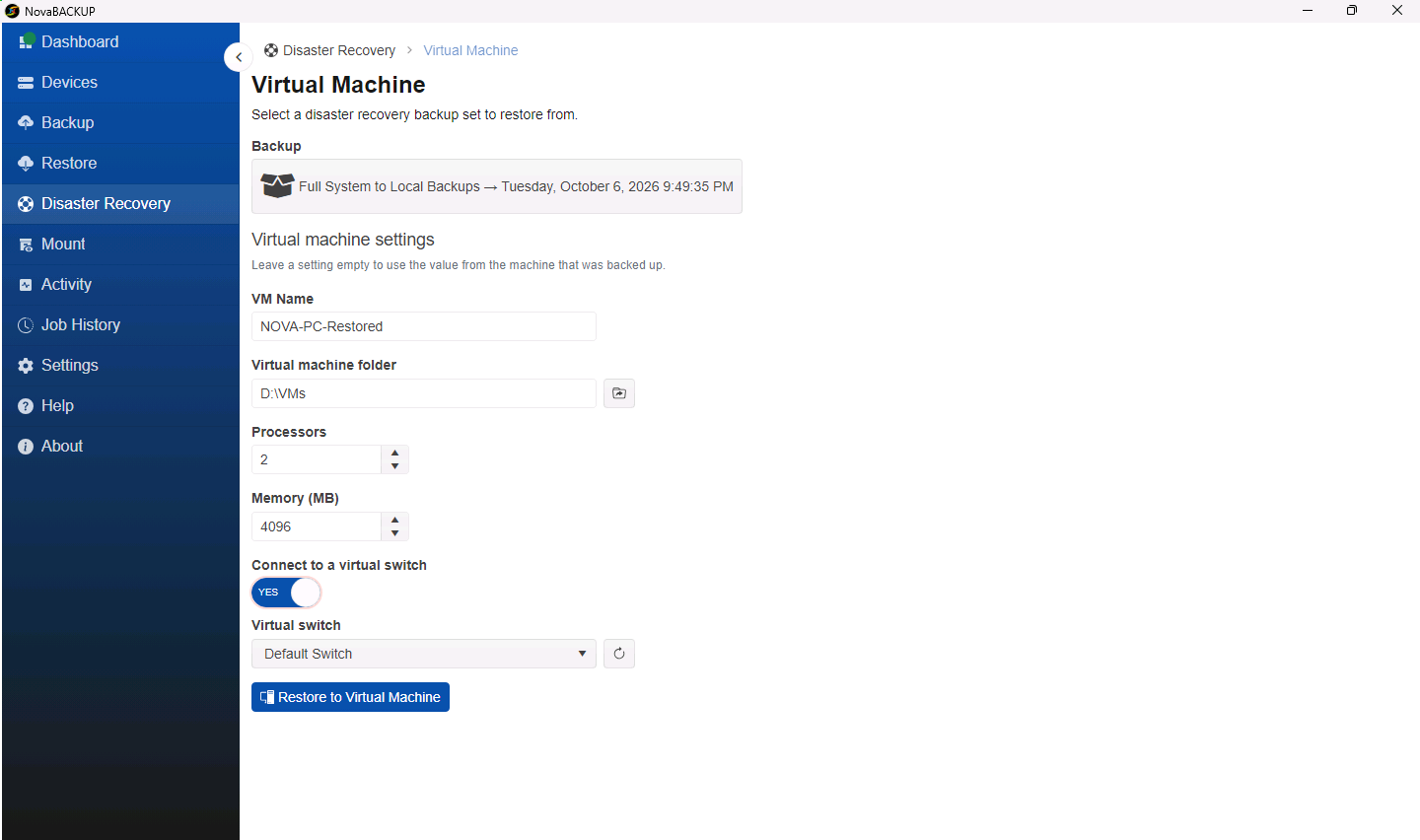
There are several reasons why you might want to restore your physical system in a virtual environment:
- Test restores: Leave the VM unconnected or use a private switch. The restored machine retains the original hostname and IP address. Therefore, connecting it to the production network results in two identical machines on the network. This is a problem for any server and a serious one for a domain controller.
- Outages: When a server fails and replacement hardware is weeks away, restore it to a VM and connect it to an external switch. Users can then get back to work on the VM while you diagnose the original hardware or wait for the new one. The section on full outages below shows how to transition back to physical hardware afterward.
- Physical-to-virtual migration: The same process is used to permanently move a physical machine to Hyper-V if the client prefers to run it virtually.
Further reading
How to Test Your Disaster Recovery Plan
For the full testing framework, including RTO and RPO targets, restore schedules, and documentation practices.
Read the guideAdjust the Restore Speed
Depending on how urgent the restore is, you may want to speed it up. This would be the case if the client is down and every hour counts, if you're restoring from the cloud or a slower NAS, or if the backup contains millions of small files. You may also want to slow it down during business hours so the restore doesn't overwhelm the client's network while people are working.
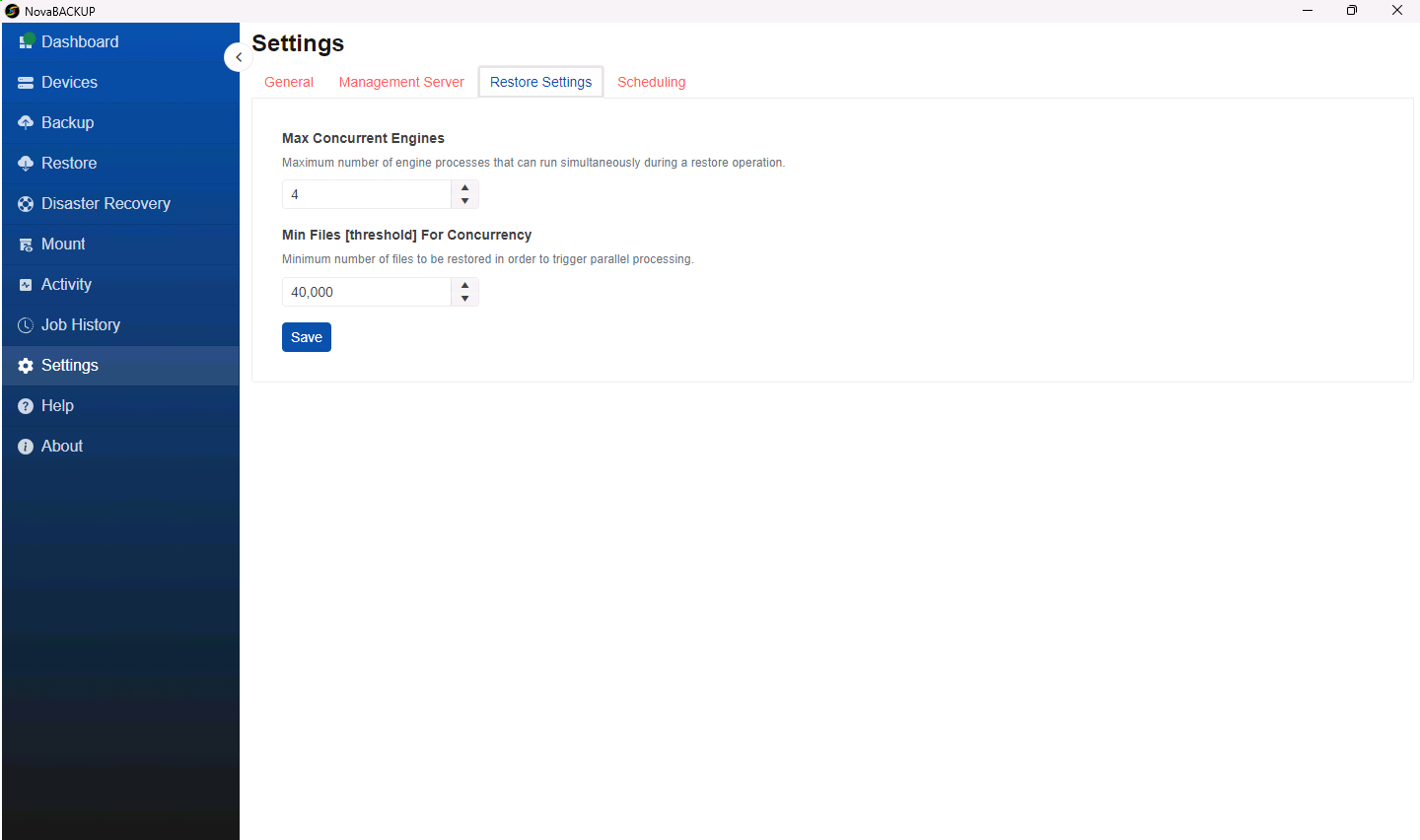
During a restore, NovaBACKUP divides the files into buckets. Several restore engines then run in parallel, each working through its own bucket. Two settings in the agent's Restore Settings control this process:
| Setting | Range | Default |
|---|---|---|
| Max Concurrent Engines (parallel restore streams) | 1 to 16 | 4 |
| Max Files Per Bucket (files per engine before it moves to the next bucket) | 1,000 to 1,000,000 | 40,000 |
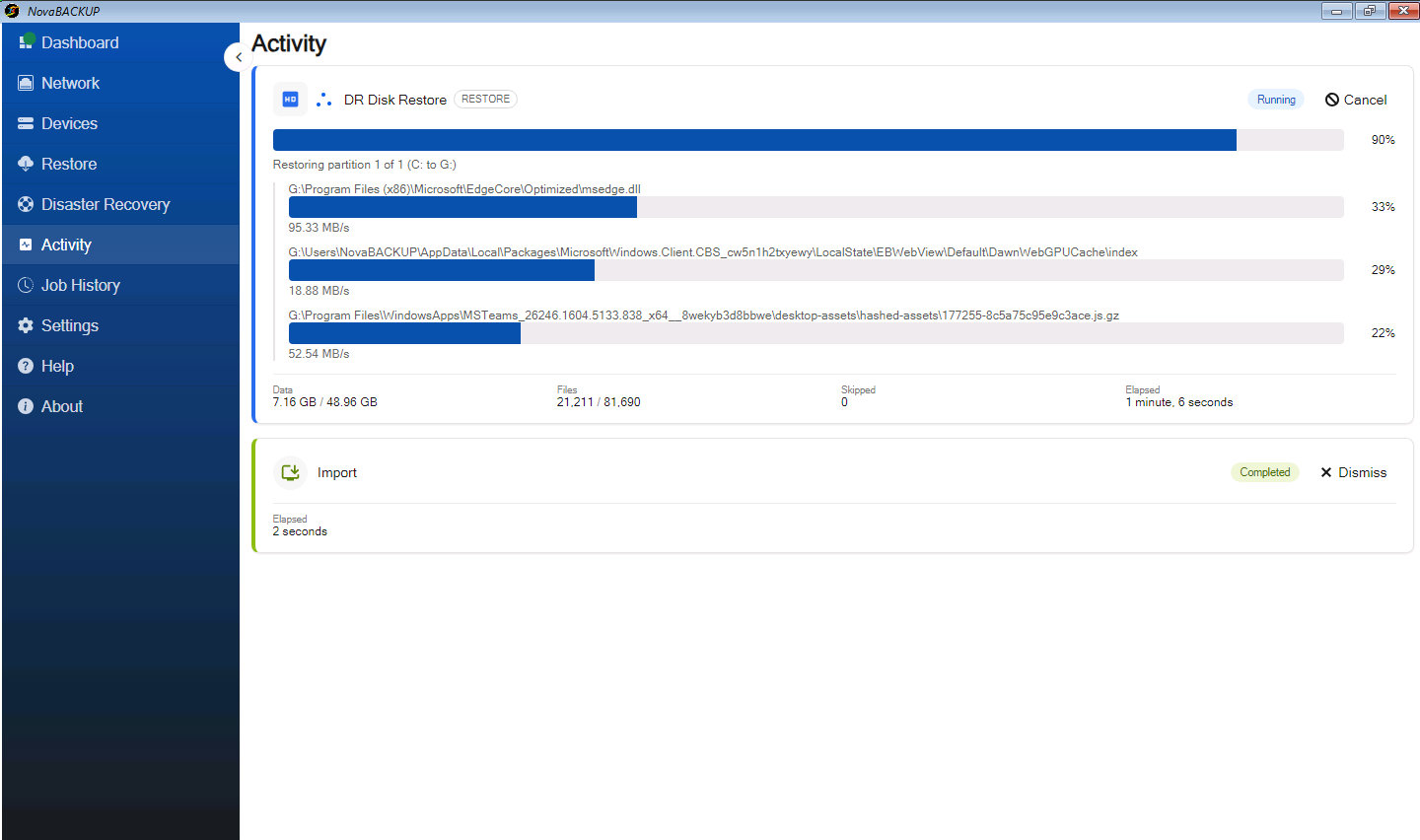
While a restore runs, the Activity tab shows each engine working.
For example, restoring 1.2 TB and 3.4 million files from a NAS takes 4 hours and 21 minutes with one stream and 1 hour and 37 minutes with 4*. At the same time, the bandwidth throughput increased from 78 MB/s to 211 MB/s. Recovery from the cloud can be even faster.
* Results from internal testing; actual results may vary depending on hardware and data.
Use Case: PC or Server Outage
When a PC or server fails, it is likely that you or your customer will use multiple of these restore options to avoid being stuck waiting for a replacement to arrive.
One possible scenario could be:
You won't be locked out of other work while any of this runs. NovaBACKUP can handle several operations at the same time, so a VM restore, file restore, and backup can run simultaneously.
Frequently Asked Questions
FAQ
How often should I test my restores?
Test critical systems with a file-level or application restore every month or quarter, and run a full system restore at least yearly. Repeat the full restore test after any major change, such as a new server, a software upgrade, or a storage migration. Mounting a backup in between confirms that the data is still readable. Record the date, the restore time, and the result each time, so you can show proof to clients and auditors.
FAQ
Do these restore options cover Microsoft 365 data?
These restore options cover data and systems on Windows PCs and servers, not Microsoft 365. Microsoft 365 email, calendars, OneDrive, SharePoint, and Teams are protected by the separate Microsoft 365 Backup and Archive add-on. It restores down to a single file, folder, or message. See NovaBACKUP Microsoft 365 backup for details.
FAQ
Is it safe to raise the number of restore engines?
More restore engines shorten large restores but use more memory and network bandwidth. The defaults suit most computers. Lower Max Concurrent Engines on computers with little memory, because a large restore can slow them down. Raise it for urgent restores, such as a client who is completely down. Our support article describes the restore settings.
Get Started
To see all of these recovery options in action, request a free trial and perform your first test restore to a Hyper-V VM.
Worth Reading
Backup Restore Options: Every Way to Restore Files, Systems, and VMs

Restore Revamp + Backup Security Checks | Data Protection Digest | October 2026
Share this