
A backup device is where NovaBACKUP stores your backups. For fast backups and restores, use a USB drive or NAS. For an offsite copy, use NovaBACKUP Cloud. Or, use a combination of both. Remember to keep your backups on a disk other than the one you are protecting.
USB Drive or NAS
- Open the device form
Click Devices in the menu on the left. Click Add new device, then select Local or network storage.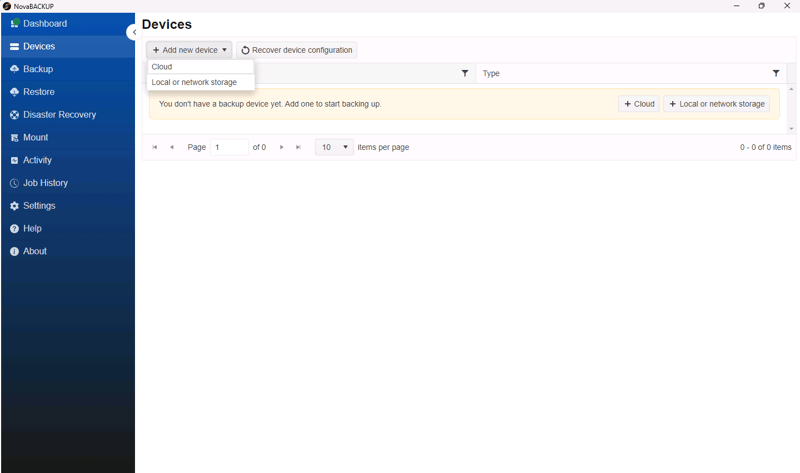
- Enter a name and a path
In Name, enter a name such as USB Backups or Office NAS. In Path, enter a folder on the USB drive, for example E:\NovaBACKUP, or the network share of your NAS, for example \\NAS01\Backups. - For a NAS, enter its credentials
Enter a User name and Password that can write to the share, for example NAS01\backupuser. Leave both empty for a USB drive.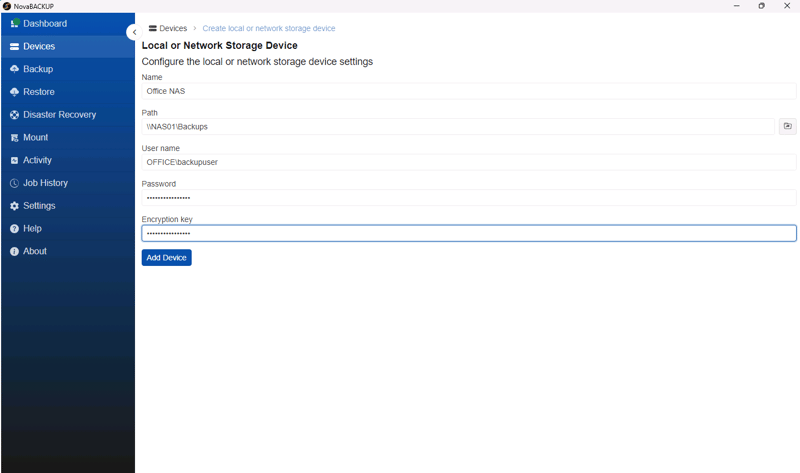
- Add the device
Click Add Device. NovaBACKUP checks that it can reach the location, then lists the device on the Devices page.
NovaBACKUP Cloud
If your license includes NovaBACKUP Cloud storage, you can create your cloud account in NovaBACKUP. The cloud device will be added automatically. If your license does not include cloud storage yet, please contact ols@novabackup.com.
- Start the sign-up
On the Dashboard, find Get Cloud Storage and click Sign up. Your web browser opens the NovaBACKUP Cloud page.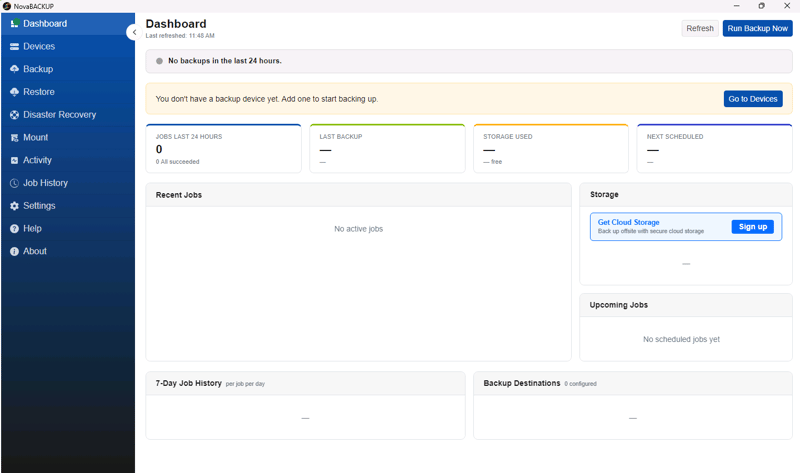
- Register
Click Register. If you already created a cloud account for this license on another computer, click Login instead and sign in.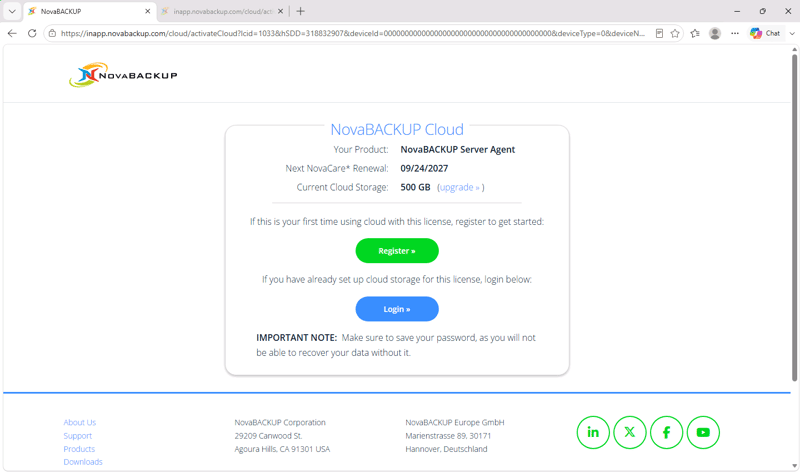
- Create your account and encryption key
Choose your storage region, enter your name, email address, and a password, then enter an encryption key. Accept the End User License Agreement and click Create Cloud Account.
Note: Keep the password and the encryption key somewhere safe. NovaBACKUP does not store the encryption key, so nobody can restore your cloud backups without it. - Return to NovaBACKUP
If your browser asks whether the page can access other apps and services on this device, click Allow. The device NovaBACKUP Cloud Storage now appears on the Devices page, ready to use in a backup job.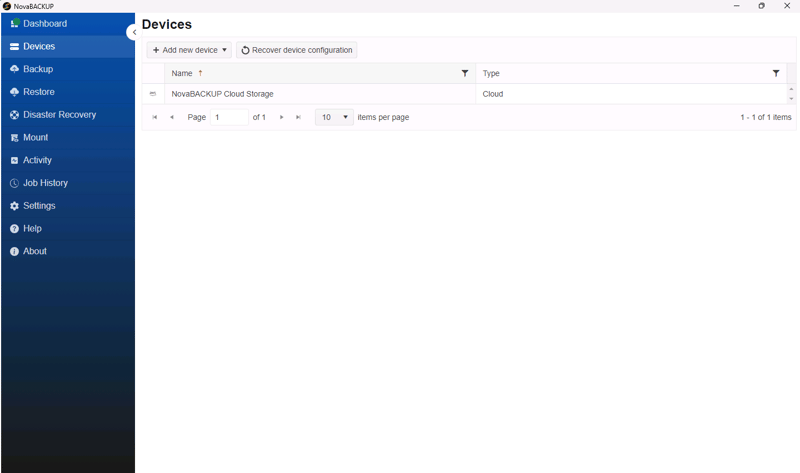
In the backup job you define what to back up, where to store it, and when it runs.
- Start a new job
Click Backup in the menu on the left. Open the job list at the top of the page and select New backup job. Click the job name and enter a name, for example Documents to USB Backups. - Select what to back up
In the tree on the left, browse to the folders you want to protect, such as your Documents folder, and check the boxes next to it .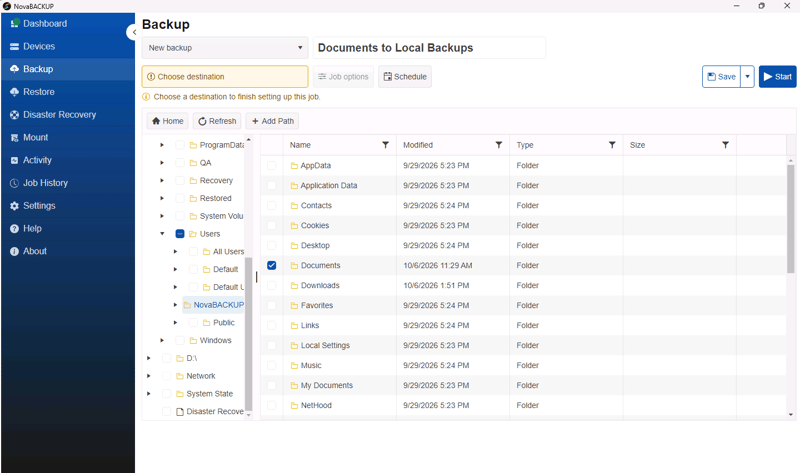
- Choose the device
Click Choose destination, select one of the devices you added, and click OK. - Set a schedule
Click Schedule, select Daily, set a Start time when the computer is usually on, and click OK.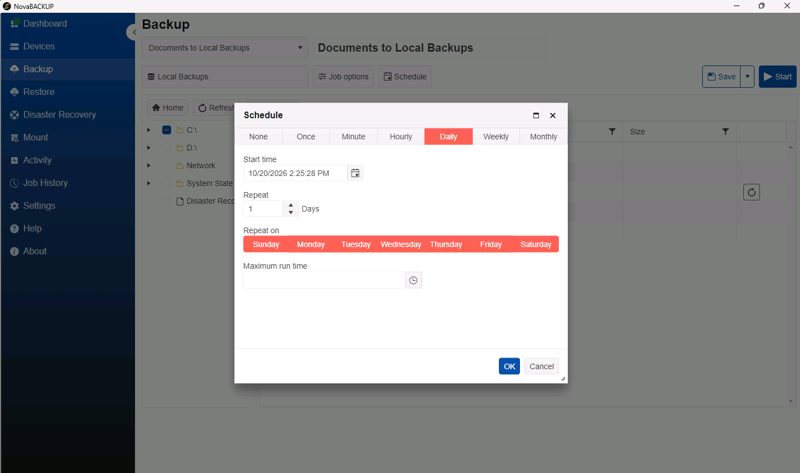
- Save and run the job
Click Save, then Start to run the first backup now. You can follow it on the Activity page, and the result appears on the Dashboard.
Tip: To maintain both a local and an offsite cloud copy in a single backup job, enable Hybrid Backup on the Archive tab of the Job options.
The first time you run the backup job, all of your data will be sent to the selected backup storage. Subsequent runs will only back up the data that has changed, making them quick.
A file backup brings back individual files and folders. Disaster Recovery restores the operating system, including Windows, as well as all the programs, settings, and data stored on the system drive (usually the C: drive). In the event of a disk failure or if Windows no longer starts, you can restore the backup onto a new disk by starting the computer from NovaBACKUP recovery media. Alternatively, you can start the backup as a Hyper-V virtual machine.
Setting it up takes two things:
- A backup job with Disaster Recovery selected
Create a second backup job as shown in step 2 and select Disaster Recovery in the tree. This selects the operating system, normally the entire C: drive, so you do not need to select C: separately. If you have other drives or data on your computer that you want to protect, such as a D: drive, select them in the same job. Then, select your USB drive or NAS and schedule the job. For example, you could choose to run it weekly.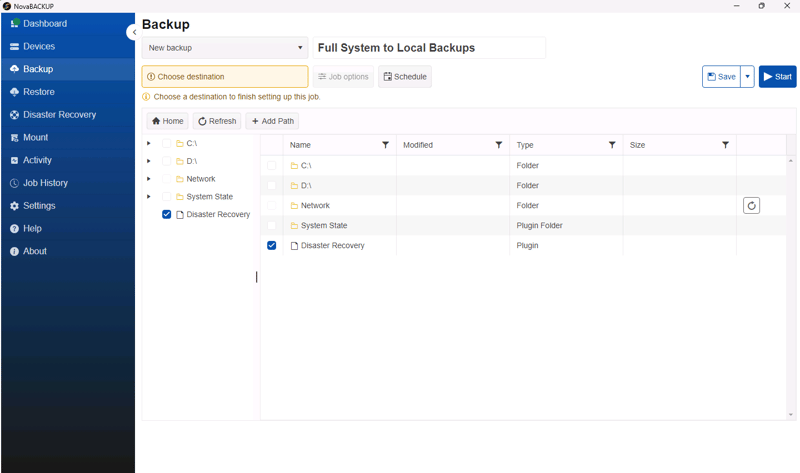
- Recovery media
Install the free Windows ADK and Windows PE add-on from Microsoft. Then click Disaster Recovery in the menu on the left, click Bootable Media, and create a USB drive or an ISO file. Create it now, while the computer works.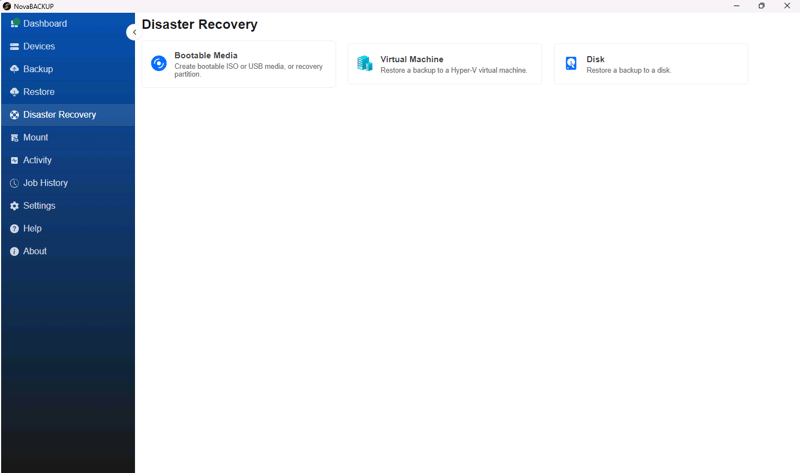
Important: Disaster Recovery only selects the operating system. Other drives, such as a D: data drive, are not included unless you select them in the tree next to Disaster Recovery. Add them to the same job, so one job protects the entire computer.
Note: Disaster Recovery is supported on UEFI computers with GPT disks, which includes most computers sold in recent years.
- Choose the backup
Click Restore in the menu on the left, then click Select backup set at the top of the page. Choose the job, select a day in the calendar and the backup set, and click OK.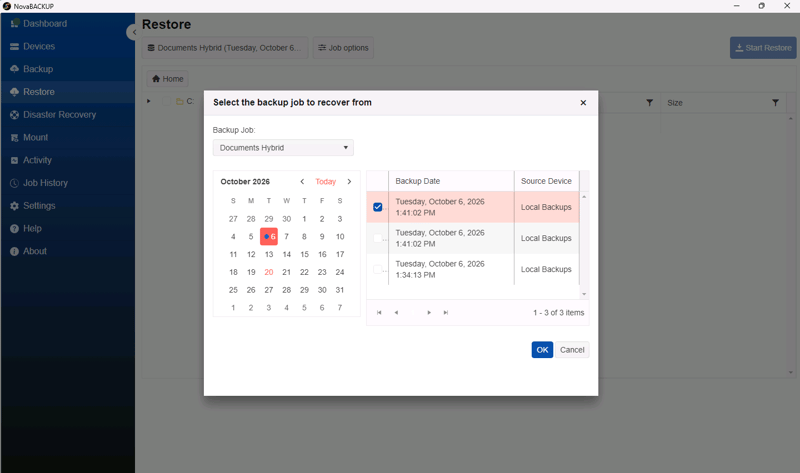
- Select the file
Browse the backup in the tree on the left and check the box of each file or folder you need.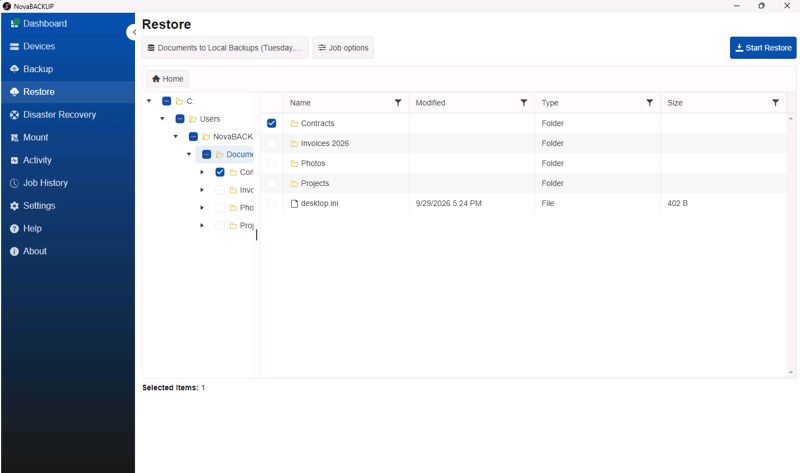
- Choose where you want it to restore
By default, files go back to their original place and replace the current version. To restore a copy instead, click Job options, turn on Restore to alternate location, enter a folder such as C:\Restored, and click OK. - Start the restore
Click Start Restore. You can follow the process in the Activity menu.
Tip: To quickly recover a file, you can use the Mount function to open a backup as a folder in File Explorer.

Restore Revamp + Backup Security Checks | Data Protection Digest | October 2026
NovaBACKUP October 2026 Release: We Are Revamping How Restore Is Done